Inviting friends and family over is a joy, but handing out your primary Wi-Fi password can be a security gamble. Unfamiliar devices connecting to your main network can expose your personal data, introduce malware, or even consume your bandwidth. A secure guest Wi-Fi network acts as a digital moat, allowing visitors to connect without compromising your own network’s integrity. This guide provides a clear, actionable path to set up guest wi fi network at home, establishing this essential layer of home network security.
Setting up a secure guest Wi-Fi network might sound technical, but most modern routers make it straightforward to set up guest wi fi network options. By isolating guest devices, you ensure that their browsing habits, potential malware infections, or accidental data leaks remain contained, far from your sensitive files and smart home devices. This is about proactive defense in an interconnected world.
Understand the Benefits of a Dedicated Secure Guest Wi-Fi Network
A separate network is not just for convenience; it is a major security upgrade. When all your devices sit on the same network, they can often see each other. This is fine for your own printer or media server, but not for a guest device.
- Preventing Unauthorized Access to Your Devices Devices on the same network can potentially see and interact with each other. If you have shared file systems or networked printers, a guest might accidentally or intentionally access them. A dedicated network keeps your primary devices hidden from visitor devices. This prevents guests from scanning your network for open ports or shared files.
- Protecting Your Personal Data and Files Your personal computers, financial data, and sensitive information are at risk when connected to the same network as untrusted devices. If a guest’s laptop unknowingly contains malware, it could spread to your personal files. A guest network limits the ability of these devices to scan or access shared drives on your main network.
- Maintaining Network Performance and Bandwidth Guest activity, such as streaming high-definition video or downloading large files, can impact the speed and reliability of the primary network. A separate guest network can often be configured with bandwidth limits. This prevents guest usage from degrading the experience for your own critical devices.
Identify Your Router’s Secure Guest Wi-Fi Network Capabilities
Before you begin, you need to check if your current hardware can create this separate connection. Most modern routers offer this feature as a standard option.
- Locating Your Router’s Admin Interface To change any settings, you need to enter your router’s admin panel. You can usually do this by typing a default IP address, such as 192.168.1.1 or 192.168.0.1, into your web browser. If you do not know your router’s IP address to set up guest wi fi network access, you can find it in your network settings on a connected computer. On Windows, use the command prompt and type “ipconfig” to see your gateway address. On a Mac, check your System Settings under Network.
- Navigating to the Guest Network Settings Once logged in, look for menus labeled “Guest Network,” “Wireless Settings,” or “Advanced Settings.” The exact wording depends on your router’s brand. You might find a checkbox to enable a guest network or a tab specifically for guest access.
- Understanding Router Compatibility Not all older routers support this feature. If you cannot find the settings to set up guest wi fi network access on your router it is possible your router is too old or lacks this functionality. If this is the case, you may need to research your specific model online or consider an upgrade. Many brands like TP-Link, Netgear, Linksys, and Asus include this feature in their modern models.
How to Set Up Guest Wi-Fi Network Settings on Your Router
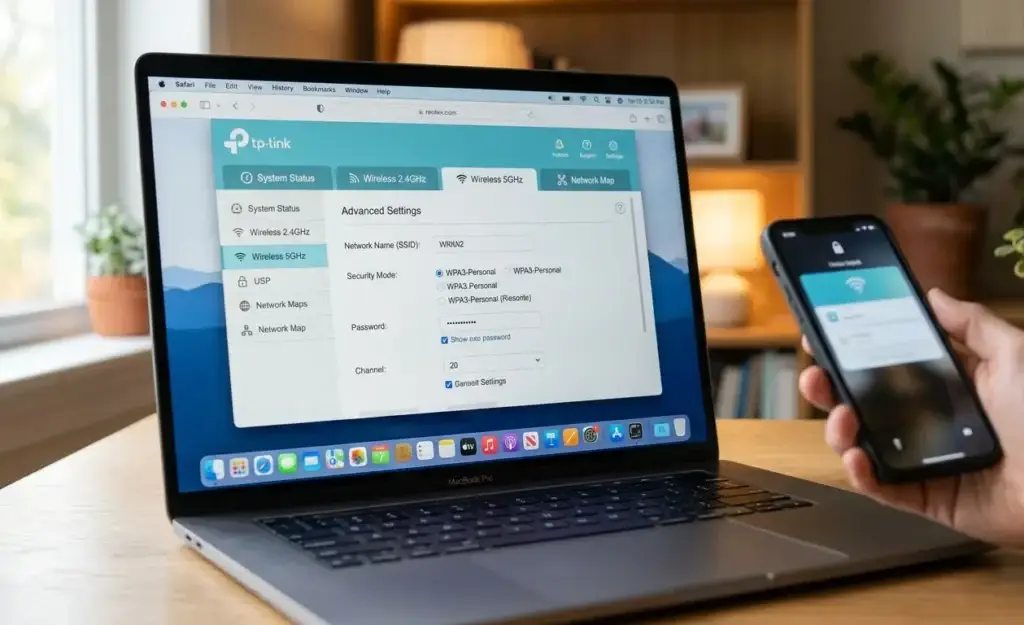
Once you find the right settings, you need to turn the feature on and secure it properly.
- Enabling the Guest Network Feature Toggle the guest network feature to “on” when you decide to set up guest wi fi network access. Most routers will immediately ask for a new name, or SSID, for this network. Using a separate name helps you and your guests easily identify it.
- Choosing a Strong and Unique SSID Do not use generic names that might signal your home address or name. Use a name that clearly identifies it as a guest network. For example, “SmithFamilyGuest” is clear and functional. Avoid using your own name or house number in the network name.
- Implementing Robust Security Encryption is essential for any Wi-Fi connection. Ensure you select WPA2-PSK (AES) or WPA3 if your router supports it. These protocols keep the traffic between your guests’ devices and your router secure. Do not use WEP or leave the network open, as these are outdated and easily compromised.
- Creating a Complex and Secure Password The guest network should have its own password. Make it complex, using a mix of uppercase and lowercase letters, numbers, and symbols. Do not use the same password you use for your main network. You can use a password manager to generate and store this password, making it easy to share when visitors arrive.
- Setting Guest Network Isolation This is the most critical step. Look for an option called “Client Isolation” or “AP Isolation.” When enabled, this feature prevents guest devices from seeing or communicating with each other. It also keeps them from accessing any devices on your main home network. Ensure this setting is enabled to maintain the security of your primary devices.
Advanced Guest Network Options and Best Practices
Once you successfully set up guest wi fi network profiles, you can manage them to keep things secure and efficient.
- Limiting Bandwidth for Guest Access Some routers allow you to set upload and download speed caps for the guest network. This is useful if you have many visitors who tend to stream video. It ensures that your main home devices always have enough bandwidth for your own needs.
- Setting Access Schedules If your router supports it, you can schedule the guest network to turn on only when you are expecting visitors. This adds an extra layer of control. When the schedule ends, the network shuts down automatically, preventing anyone from connecting unexpectedly.
- Disabling Guest Network When Not Needed If you do not have visitors, turn the guest network off. Keeping it active when it is not needed creates an unnecessary access point for potential intruders. Make it a habit to check if the network is on and turn it off after your guests leave.
- Regularly Updating Router Firmware Router manufacturers frequently release firmware updates that fix security bugs and improve performance. Check your router’s management page or the manufacturer’s website to see if an update is available. Keeping your firmware current is one of the best ways to protect your entire home network.
When Your Router Does Not Support Guest Networks
If your current hardware lacks a guest network feature, you still have options to improve your security.
- Utilizing a Second Router You can use an older, spare router to set up guest wi fi network zones if your main router doesn’t support it. Connect this second router to your main one via an Ethernet cable. Configure the second router to have its own unique SSID and password. Disable the DHCP server on the second router if you configure it in “access point” mode to avoid network conflicts.
- Considering a Mesh Wi-Fi System Upgrade Modern mesh Wi-Fi systems almost always allow you to set up guest wi fi network options as a standard component. They also provide better coverage throughout your home and are generally easier to manage. Upgrading to a mesh system can simplify your security and provide a much better Wi-Fi experience for everyone.
- Using a VPN on Your Main Network While a VPN (Virtual Private Network) on your main router does not create a separate guest network, it can encrypt all traffic originating from your home. This is an additional security layer, but it does not provide the same isolation benefits as a dedicated guest network.
Conclusion
When you set up guest wi fi network access for visitors, it is a simple but effective way to protect your home data. By separating visitor traffic from your main network, you prevent unauthorized access to your devices, shared files, and personal information. Remember to choose a strong password, enable client isolation, and update your firmware regularly to keep your home network secure. Taking these steps ensures you can offer internet access to your guests without worrying about your own digital safety. If your router does not support this feature, consider upgrading to a modern system to gain this vital protection.